Group Analytics
Customers on an Enterprise or Growth plan can access Group Analytics as an add-on package. See our pricing page for more details.
Overview
Mixpanel Group Analytics allows behavioral data analysis at a customized group level (such as account, device—or any other way you want to assess your business).
Historically, Mixpanel grouped events by a single identifier called the distinct_id. This ultimately grouped events by the individual user. Group Analytics allows you to establish an event property other than the distinct_id, such as company ID, account ID, project ID, or billing ID, as an identifier by which to analyze your data. Mixpanel now supports two models, Hierarchical and Standard, for grouping data. Which one you use depends on whether the relationship between your groups and your users is something you need Mixpanel to enforce.
Hierarchical Groups
A purpose-built model for B2B SaaS where users belong to companies. Mixpanel enforces a two-level hierarchy — Company (top level) and User (bottom level) — using the reserved properties $company_id and $user_id. Identity is the composite key ($company_id, $user_id), which means the same $user_id in two different companies is treated as two distinct users.
Use Hierarchical Groups when:
- You are a B2B product where every user belongs to exactly one company (or account, workspace, organization, etc.)
- The company/user relationship is known from the onset of your tracking
Standard Groups
Define one or more group keys — event properties like company_id, team_id, or project_id — and analyze uniques, funnels, and retention by those keys instead of (or in addition to) distinct_id. Each group key is independent: Mixpanel does not assume any relationship between them or between groups and users.
Use Standard Group Analytics when:
- You need flexible, independent grouping dimensions (restaurants, drivers, devices, etc.)
- Your groups don’t have a strict parent-child relationship with users
Choosing between the two
| Hierarchical Groups | Standard Group Analytics | |
|---|---|---|
| Relationship model | Two-level hierarchy: Company → User | Flat — group keys are independent |
| Identity | Composite: $company:<company_id>|$user:<user_id> | distinct_id unchanged |
| User uniqueness | $user_id scoped to $company_id | Global distinct_id |
| Reserved properties | $company_id and $user_id | None — you define your own group keys |
| ID Management | Simplified ID Merge only | Original or Simplified ID merge |
| Project setup | Must be enabled at project creation | Can be added to existing projects (but data only attributed to groups after set up, not retroactive) |
| Best for | B2B SaaS with company → user structure | Marketplace, multi-entity, or non-B2B models |
Important: You cannot migrate a Standard project to Hierarchical (or vice versa) after the project has been created. Choose the model that matches your data before you start sending events.
Data Modeling
Mixpanel Group Analysis allows you to select alternative unique identifiers in reports.
By default, Mixpanel counts unique users by distinct_id. Group Analytics allows you to uniquely count events by an alternative identifier, such as company ID, invite ID, or another value shared by a group of individuals with different distinct_ids. This allows behavioral analysis from a business or group level, as opposed to an individual level. You can answer questions such as:
- Which companies are engaging the most with a product?
- In instances where there are more than one user per account, such as a video streaming service, how are events triggered at an account level?
- What groups convert through a funnel to a goal event (as opposed to what individual users convert)?
Group Profiles
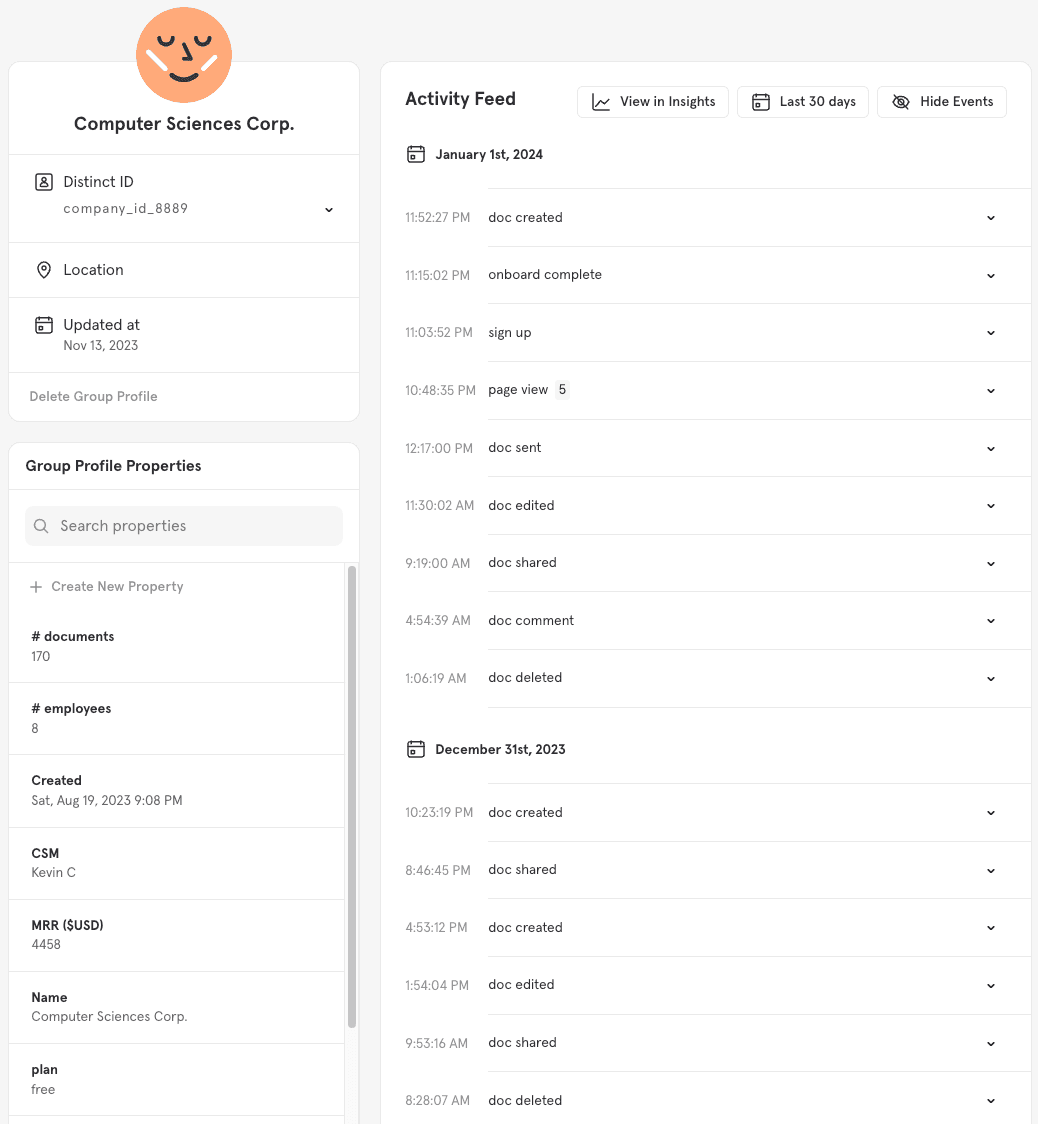
Much like a user profile, Group Profiles are a collection of properties and event history specific to a group.
Group Profiles have an activity feed that shows the events performed by users in a group. Only the events attributed to the group with a defined group key will appear in the group’s activity feed.
The Group Profile also displays the properties unique to that group - here’s an example of it:
To access a group profile:
-
Navigate to the Users page from the menu.
-
Click on the group identifier you want to analyze on.
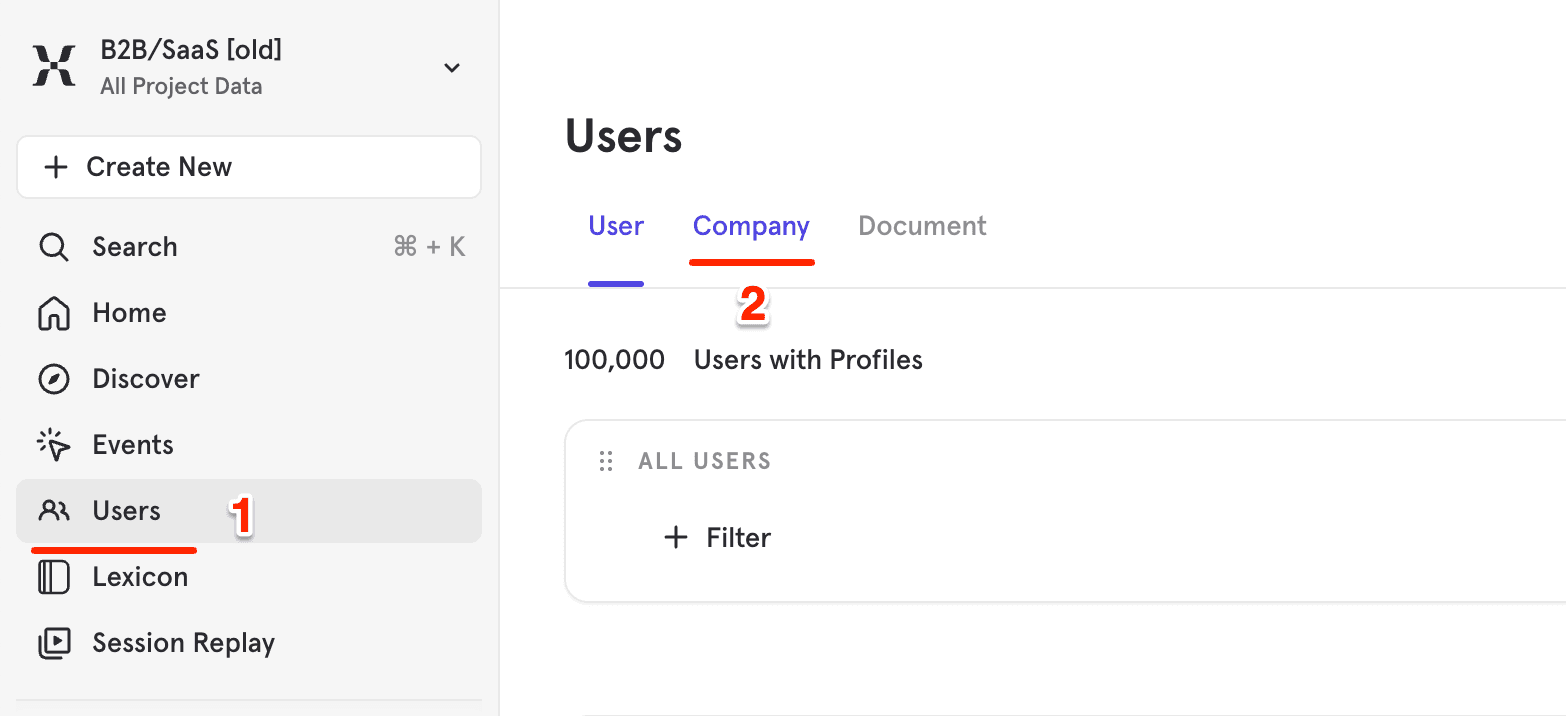
- Groups profiles will populate the Users report.
Change the Group Identifier in a Report
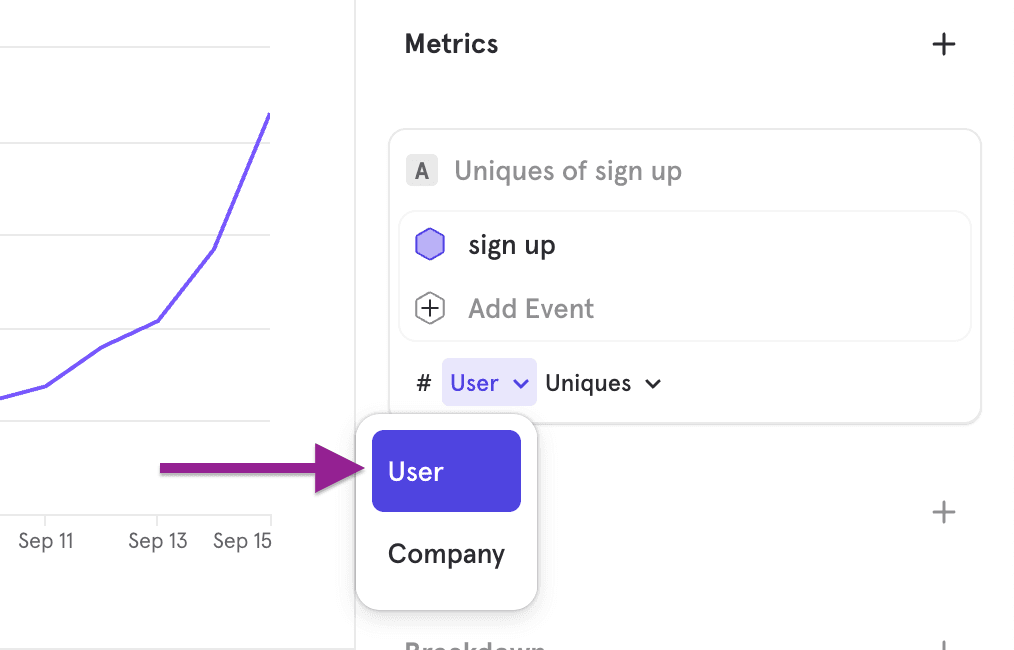
By default, Metrics aggregates at the user-level. To change the identifier used for aggregation in a metric:
- Go to a report
- Click the “Users” dropdown within the Metric
- Select a Group. The report will now display results grouped by the newly selected group identifier.
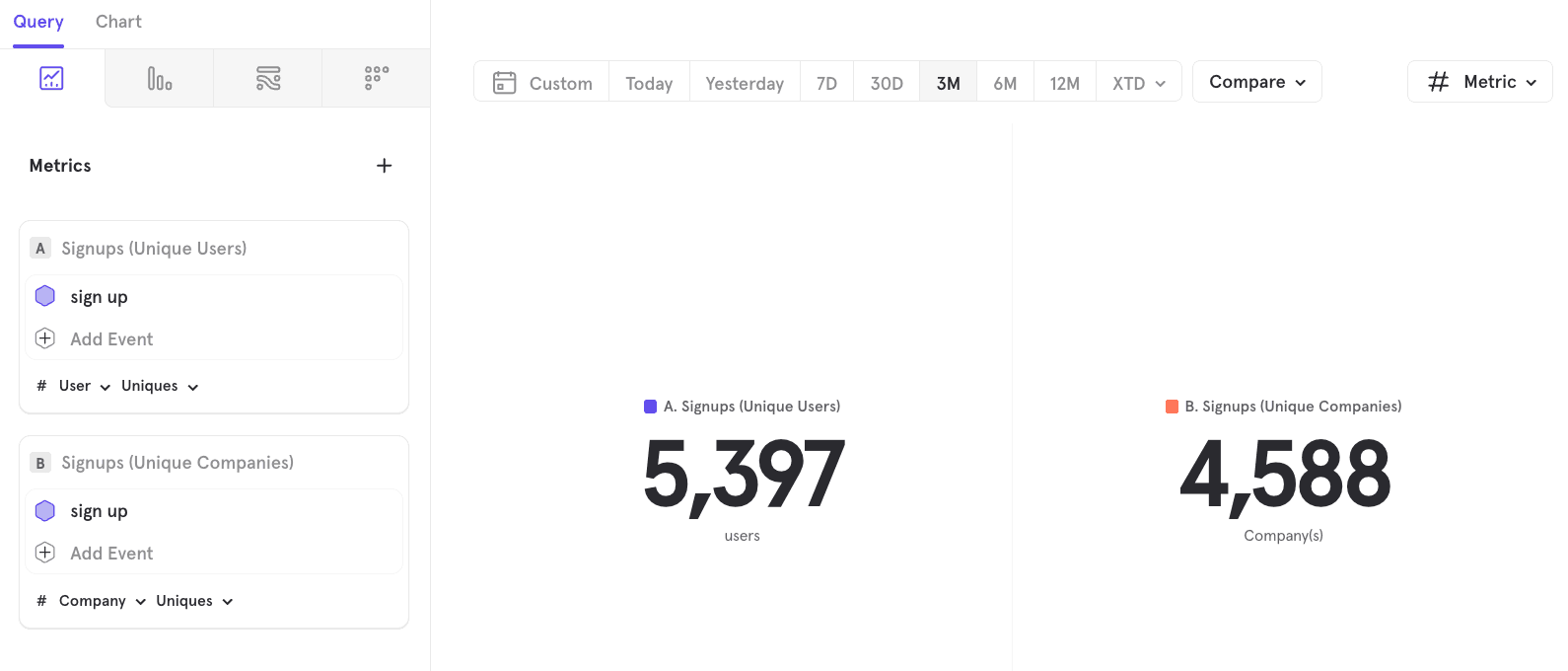
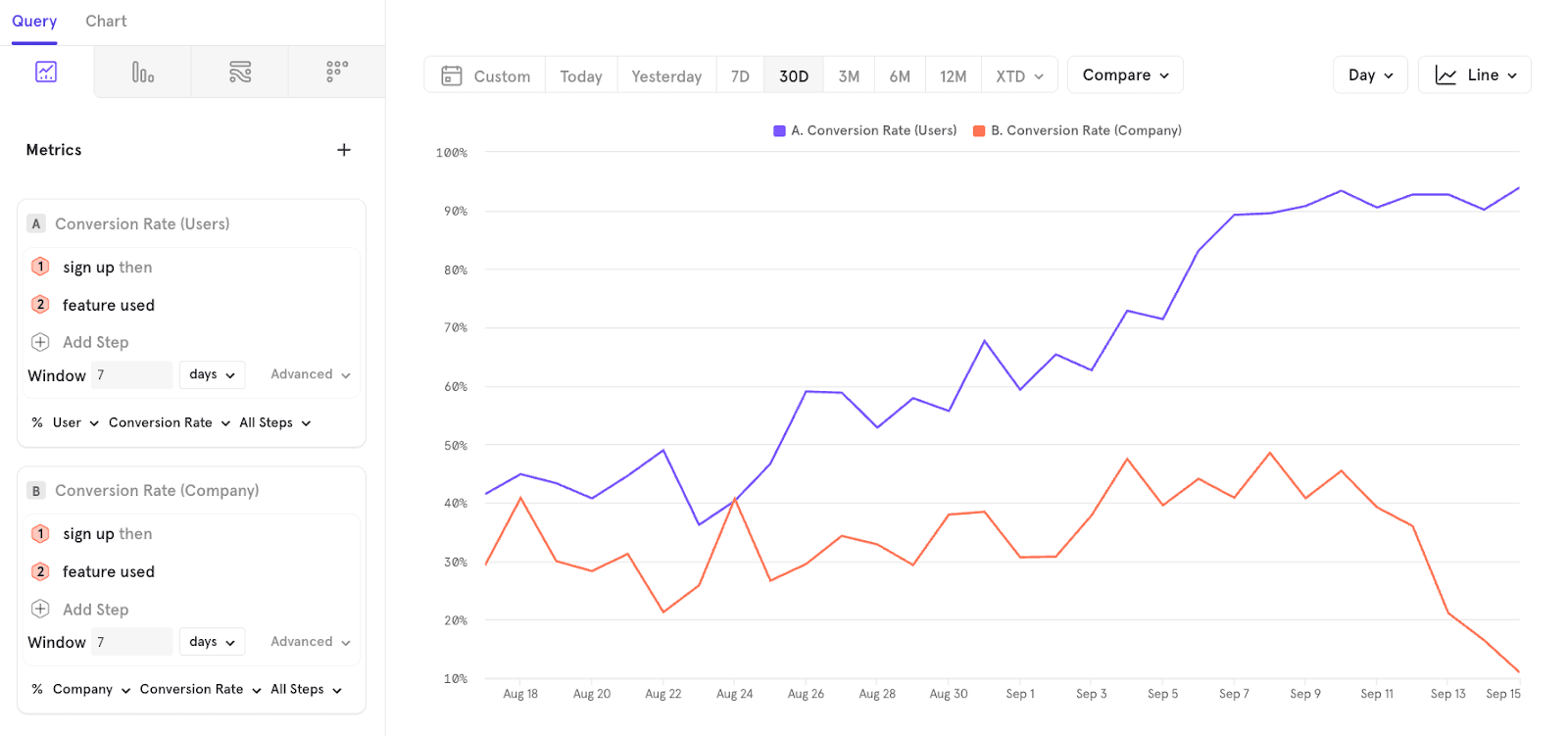
When your Insights report includes multiple Metrics, you can individually toggle the identifier for each one.
For example, you can create an Insights report that shows Signups by unique Users and by unique Companies.
Similarly, you can build a report that displays Conversion Rates per User and per Company.
Was this page useful?